


Release time:2026.11.16
TP-Link's Archer NX series offers 5G routers that provide reliable internet for homes, offices, or anywhere traditional broadband doesn't reach. Models such as the Archer NX600, NX505, NX500, NX205, and NX200 support 5G and 4G LTE networks and provide external antenna connectivity for users who need better cellular reception.
Sometimes, the built-in antennas struggle to get a strong signal. Things like indoor walls, tinted glass, nearby buildings, or even the local terrain can interfere with your connection.
If you're struggling with signal, adding a compatible external MIMO antenna lets you move it to a better spot for a more stable connection.
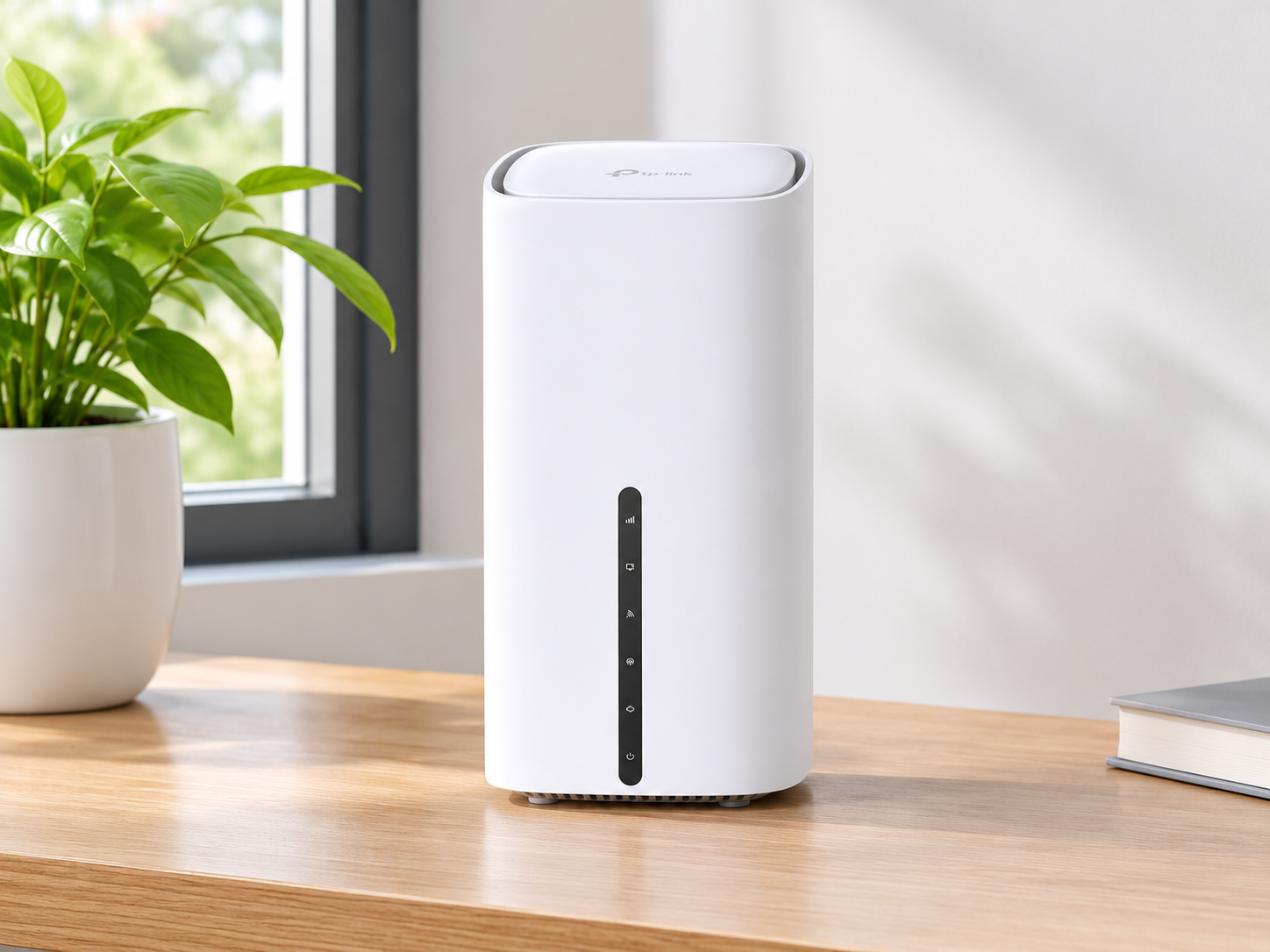
Yes, every model in the Archer NX series comes with two external antenna ports, allowing for a 2×2 MIMO setup.
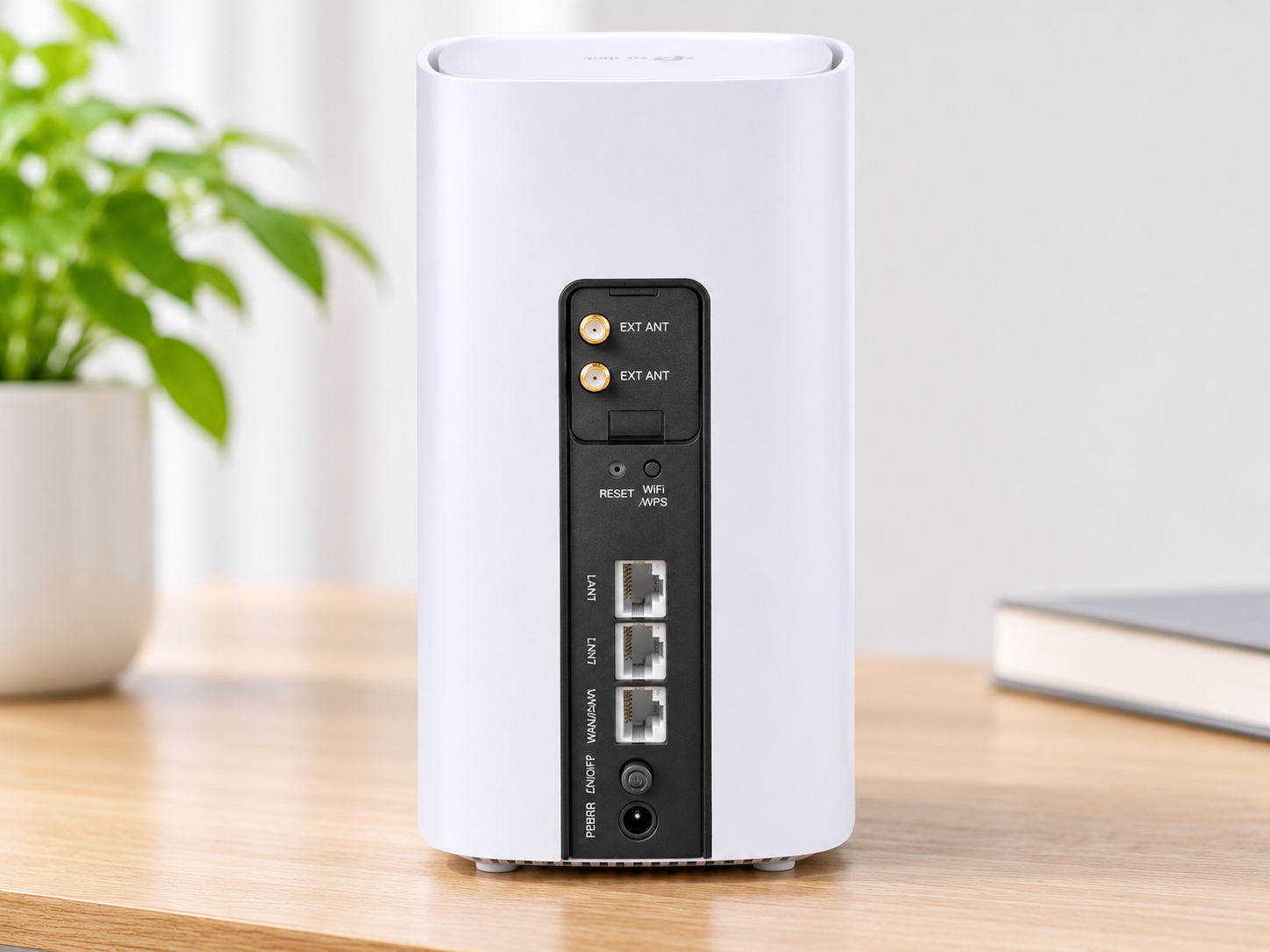
However, the connector type varies depending on the router model and hardware version.
The Archer NX600, NX205, and NX200 use SMA external antenna ports. The Archer NX505 uses two TS-9 ports, while the Archer NX500 uses SMA ports on V1 and V2 hardware versions and TS-9 ports on V3.
For routers with compatible SMA connections, Maswell antennas can be connected using the appropriate Maswell RP-SMA plug adapter. For models with TS-9 ports, a suitable TS-9 adapter cable is required.
Before you buy an adapter, double-check your router's hardware version and connector type to make sure you get the right fit.
Why Use an External Antenna with a TP-Link Archer NX Router?
TP-Link's Archer NX routers bring reliable internet to homes, offices, or anywhere broadband doesn't reach. Models such as the Archer NX600, NX505, NX500, NX205, and NX200 support 5G and 4G LTE networks and provide external antenna connectivity for users who need better cellular reception.
Sometimes, the built-in antennas struggle to get a strong signal. Things like indoor walls, tinted glass, nearby buildings, or even the local terrain can interfere with your connection.
An external antenna helps even when your router doesn't show weak signal bars.
5G and LTE speeds depend on how clean and stable your signal is. A router can show a reasonable signal level while still delivering inconsistent download speeds, upload speeds, or latency.
This can happen when the router is used indoors and the strongest cellular signal is actually available near a window, on a balcony, outdoors, or in another part of the building.
An external antenna lets you separate the router from the antenna. The Archer NX can stay in a convenient spot, while the antenna goes where the signal is strongest.
This is a big help for home internet, rural areas, remote work, or pop-up offices relying on cellular data.
Recommended External Antennas for TP-Link Archer NX600, NX505, NX500, NX205, and NX200
The right antenna relies heavily on the local signal environment. If you know the approximate direction of the nearest cellular tower, a directional antenna can help focus reception toward that area. When the best signal direction is uncertain, an omnidirectional antenna is easier and more flexible to install.
Maswell provides both directional 2×2 MIMO and omnidirectional 2×2 MIMO antennas, giving you choices depending on their installation conditions.
1. AN_GSM_201_MIMO
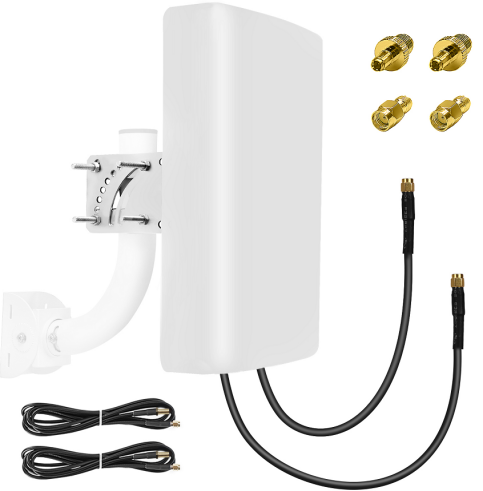
The Maswell AN_GSM_201_MIMO is a high-gain 2×2 MIMO panel antenna for cellular networks. Its directional design works best when you know where the cell tower is and can point the antenna toward it.
It covers 698–960 MHz and 1710–2690 MHz with up to 10 dBi gain. With two MIMO paths and various connector options, its screw-mount design is built for fixed setups.
For TP-Link Archer NX users operating on compatible cellular frequency bands, this antenna is a great way to improve reception, especially when the router is located far from a tower or struggles with weak indoor signals.
2. AN_Master_001-2
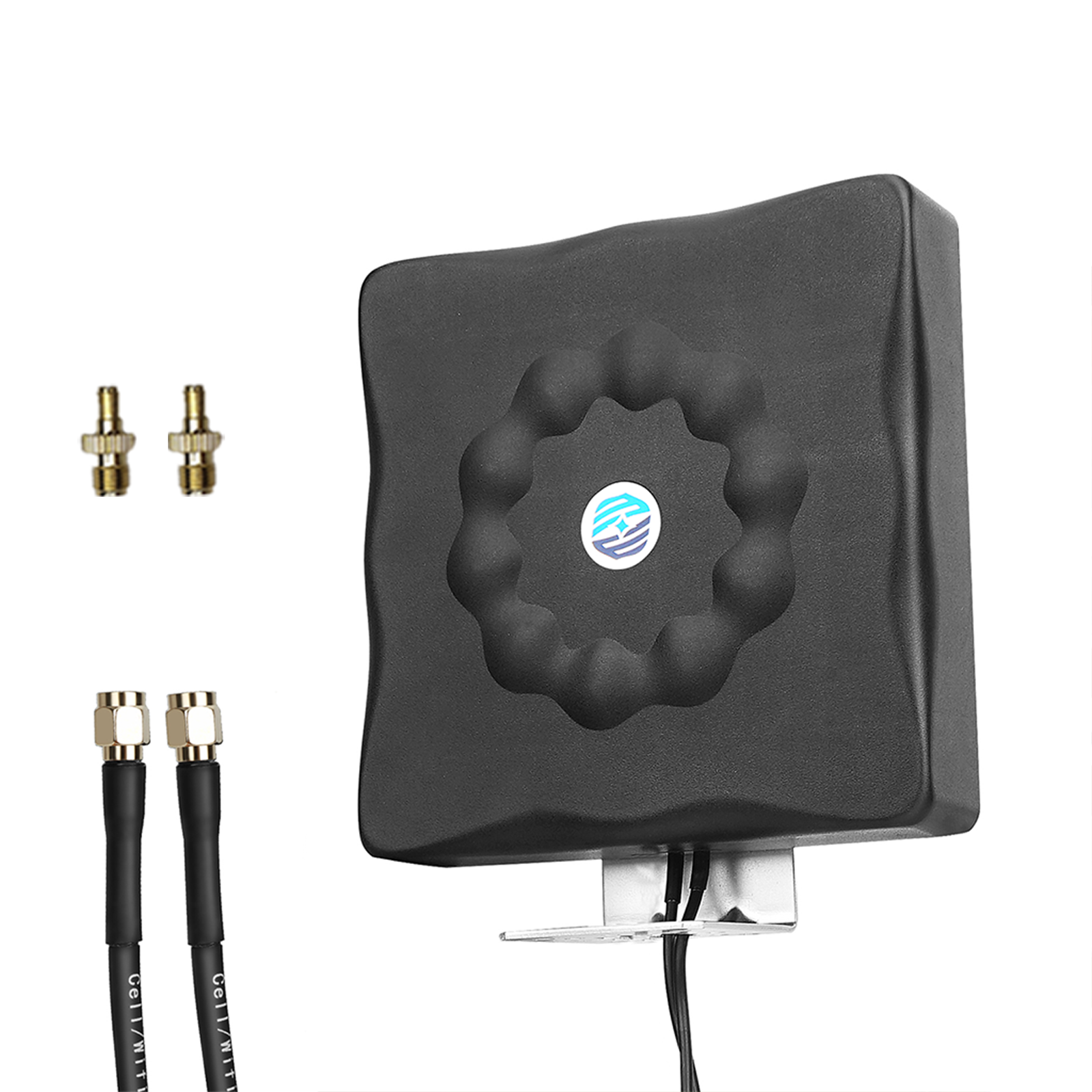
The AN_Master_001-2 is a wideband 2×2 MIMO panel antenna designed for 5G, 4G, and WiFi applications. It covers 600–8000 MHz and is built for outdoor use when you need wide frequency range and stable MIMO performance.
Its directional design works best when you can locate the cell tower and aim the antenna right at it. The antenna is also designed for outdoor use with an IP67 weather-resistant construction.
If you're using a TP-Link Archer NX and need a wideband directional antenna, the AN_Master_001-2 is a versatile, broad-coverage option.
1. AN_GSM_202_MIMO
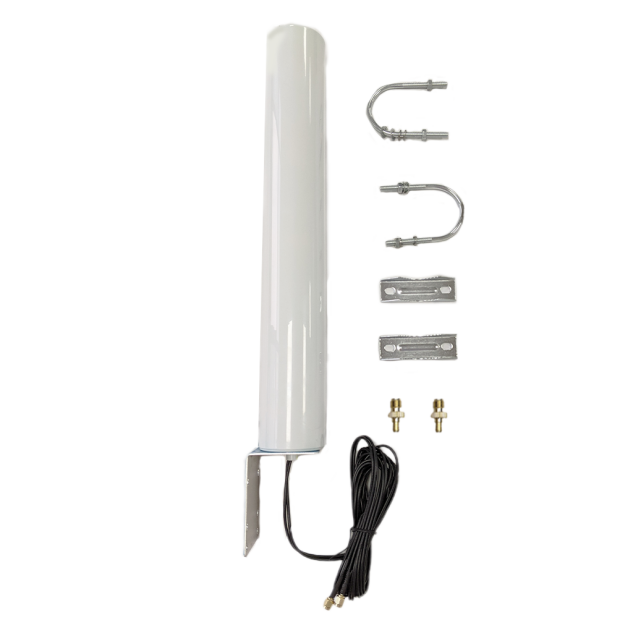
The AN_GSM_202_MIMO is a 2×2 MIMO high-gain antenna covering 700–6000 MHz with 4.5 dBi peak gain. It supports 5G, 4G LTE, 3G, and WiFi 6E applications.
Its omnidirectional design is perfect if you want a flexible antenna without needing to hunt for a cell tower.
For Archer NX users wanting an easy setup without aiming at a specific tower, this is a great choice, as long as your local network bands are covered.
2. AN_Master_Cubic-2C-LP
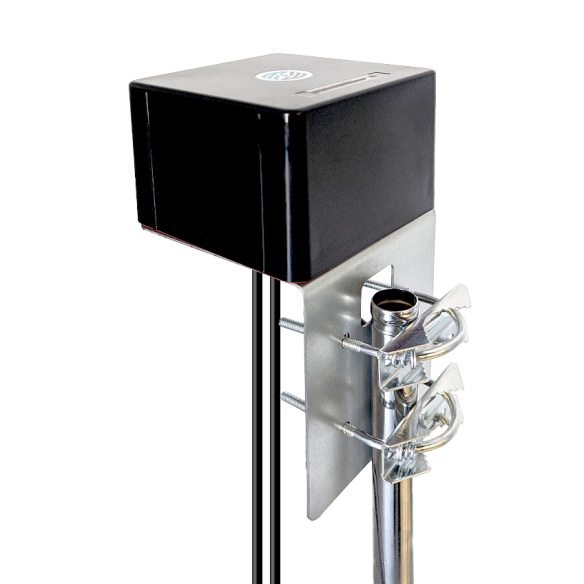
The AN_Master_Cubic-2C-LP is a compact 2×2 MIMO antenna designed for applications where installation space is limited. It covers 600 MHz to 8.0 GHz and offers gain of up to 6.0 dBi.
Its size and mounting options make it perfect for tight spots. It’s also built for the outdoors with an IP67 rating.
If you have a TP-Link Archer NX and want something compact instead of a bulky panel, this is a solid pick.
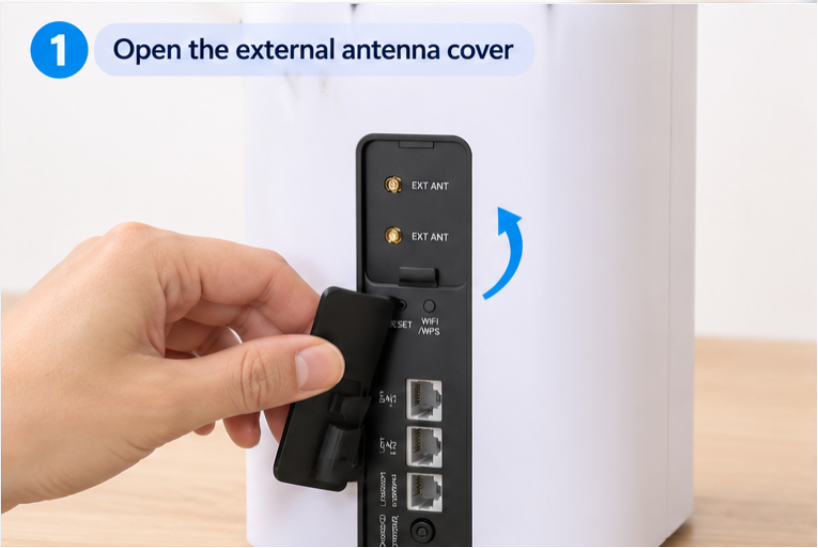
The TP-Link Archer NX series features two external antenna ports, but the exact connection method depends on the router model and its connector type.
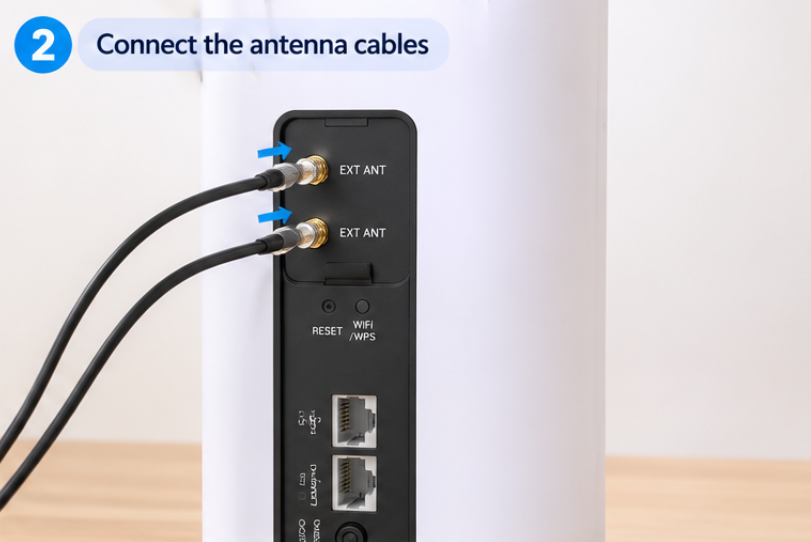
For models with SMA external antenna ports, use the appropriate Maswell RP-SMA plug adapter to connect the external antenna. For the Archer NX505 and Archer NX500 V3, which use TS-9 connectors, a suitable TS-9 adapter cable is required.
Ensure both are connected when using a 2×2 MIMO antenna system.
Once the cables are attached, place the antenna somewhere effective. If it's directional, point it toward the strongest signal; if it's omnidirectional, it's easier to place.
Depending on your model and firmware, you might need to turn on the external antenna feature in your router's web interface. You'll usually find this under Advanced > Network > Mobile WAN > External Antennas.
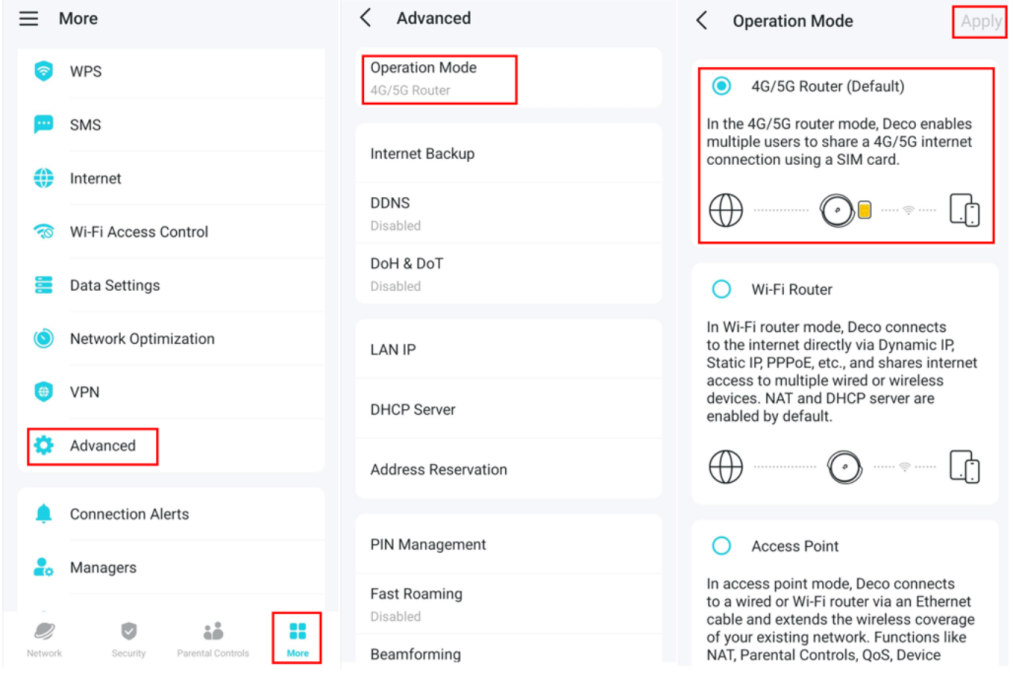
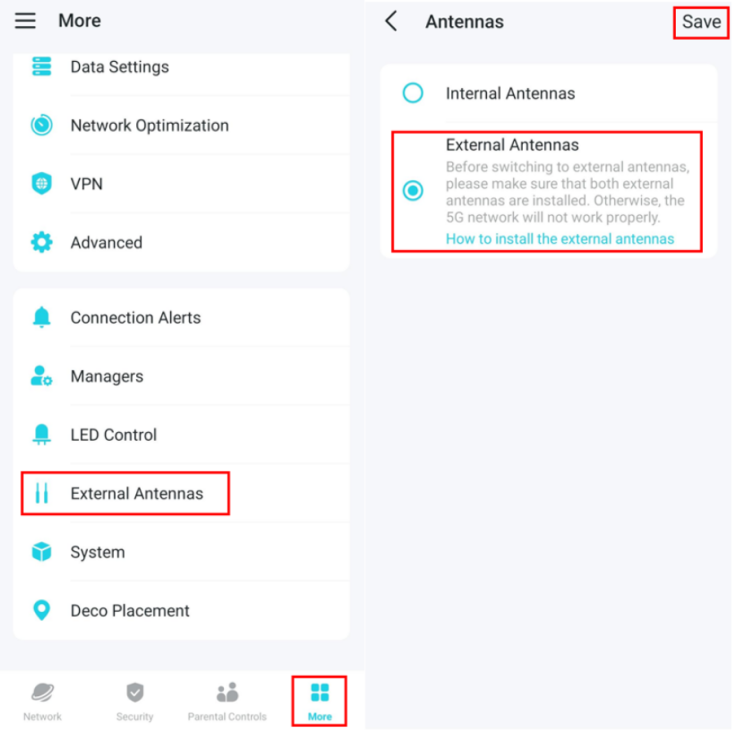
This setting depends on your specific model and firmware. If you don't see it, check your router's manual for help.
For more details, see TP-Link's official guide:
How to Install 4/5G External Antennas on 4/5G Router:
https://www.tp-link.com/us/support/faq/4330/
When everything is connected and configured, test your signal quality and run a few speed tests to see how the new antenna compares to the original setup.
Watch how to install our 2x2 MIMO directional antennas (by Saverio Cirillo)
English: https://youtu.be/TYo_PAMsxc0
Italian: https://youtu.be/lZdf6zj-oD8?si=00ckgIqblO_YVszL
Germany:https://youtu.be/amdwJzcWNBE
French:https://youtu.be/aTs6kuGp3Mo
Spanish:https://youtu.be/a-UIbCXi_6k
Related Articles
How to Install a 2×2 MIMO Directional Antenna for Better 5G Performance?
https://www.maswelltech.com/index.php?m=content&c=index&a=show&catid=69&id=239
Higher isn't always better. In some environments, moving the antenna slightly lower or using nearby structures to reduce interference can produce better results.
Instead of just pointing them at the nearest tower, adjust them carefully. The best serving cell is not always the closest one, so actual signal quality and throughput should guide the final direction.
Cable quality matters, too. Long or low-quality coaxial cables can weaken the signal, so it is better to keep cable runs as short and direct as possible.
Most importantly, test your setup before and after installing it. This gives a more useful comparison than relying only on the number of signal bars shown by the router.
RSRP can be checked with a smartphone before installing an external antenna. On Android, install LTE Discovery and check the RSRP value in the Discover tab. On iPhone, dial 3001#12345# to enter Field Test Mode and check the available cellular signal information.
When comparing RSRP values, values closer to zero generally indicate a stronger received signal. For example, −76 dBm represents a stronger signal than −115 dBm. However, the location with the strongest RSRP does not necessarily produce the best overall performance.
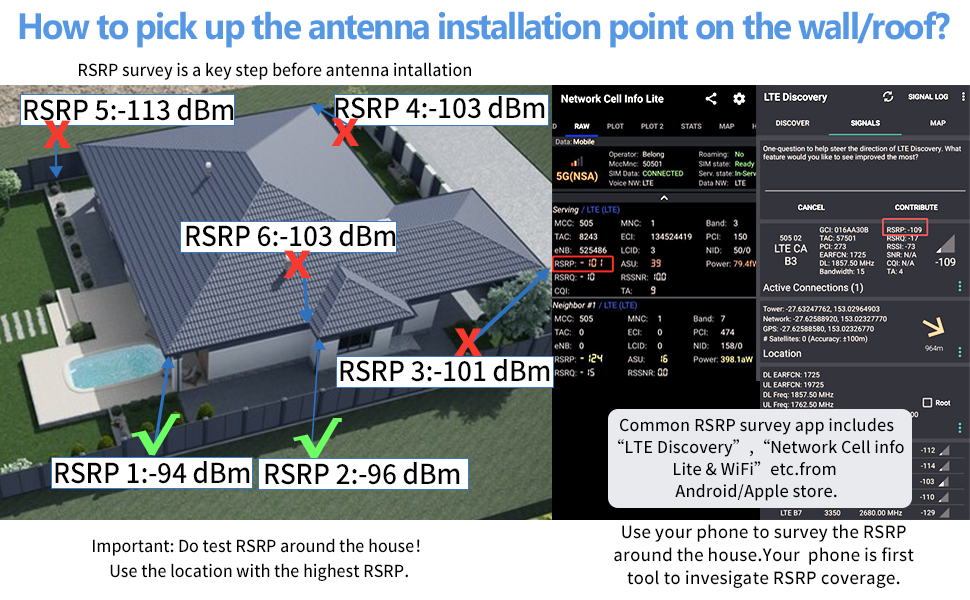
Therefore, RSRP should be treated as a starting point rather than the only measurement. After selecting a promising location, test the antenna direction and compare actual download speed, upload speed, latency, SINR, and RSRQ when available.
Cable length should also be kept as short as possible. Excessive coaxial cable loss can reduce some of the improvement gained from moving the antenna to a better location. Avoid unnecessary cable loops and keep the antenna away from large reflective metal surfaces where possible.
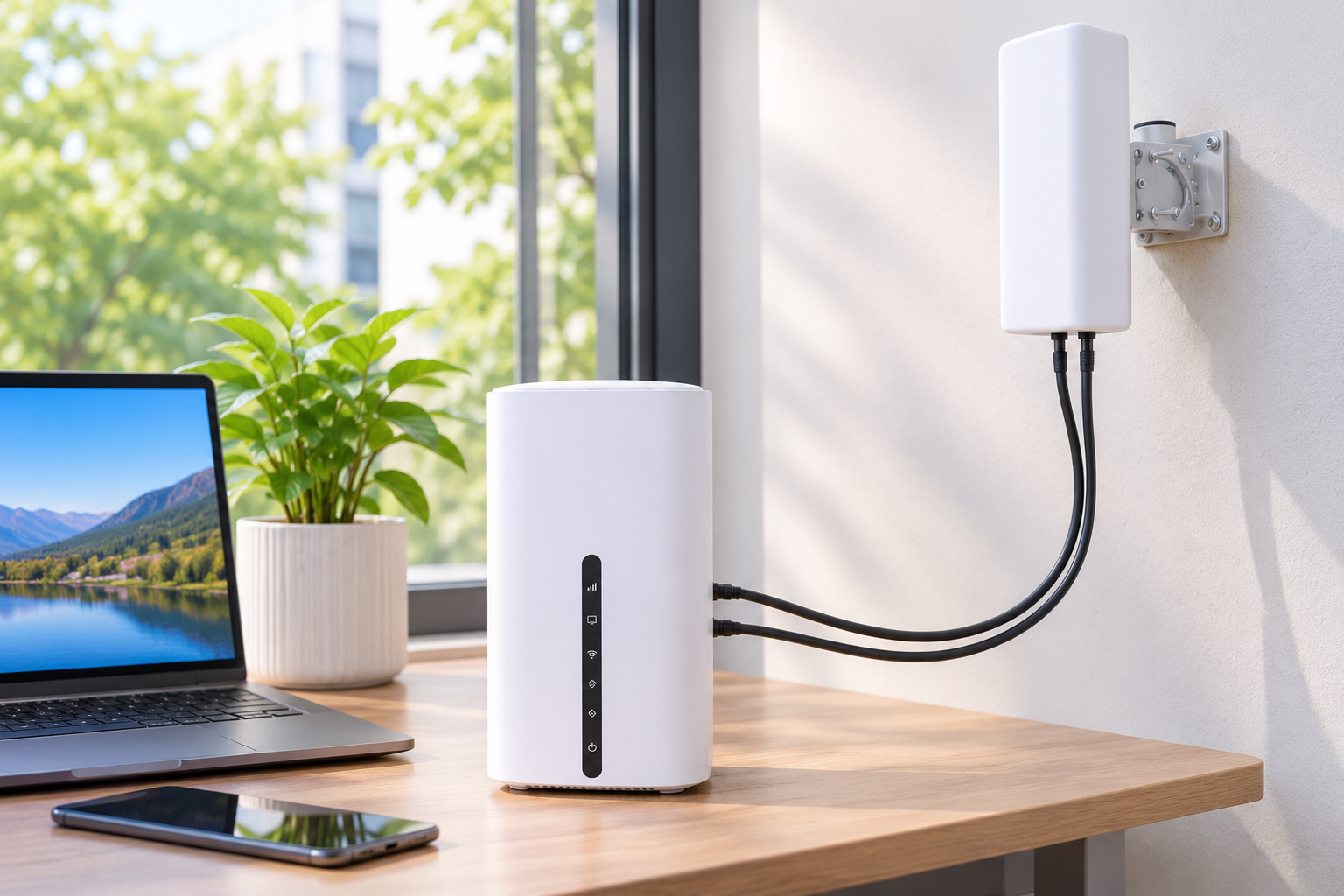
The TP-Link Archer NX600, NX505, NX500, NX205, and NX200 feature two external antenna ports, making them suitable for 2×2 MIMO external antenna solutions.
For users who know the direction of the serving tower, the Maswell AN_GSM_201_MIMO and AN_Master_001-2 offer directional 2×2 MIMO options.
For installations where tower direction is uncertain or a simpler setup is preferred, the AN_GSM_202_MIMO and AN_Master_Cubic-2C-LP provide omnidirectional 2×2 MIMO alternatives.
Before choosing an antenna, check that it supports the frequency bands used by your local mobile network and that the adapter matches your router's connector type.
Performance depends not only on antenna selection but also on installation position, antenna orientation, cable quality, and the actual RF environment. Start with RSRP, then compare real-world throughput, SINR, and RSRQ can help users determine the most effective antenna position.
For TP-Link Archer NX users looking to improve LTE or 5G connectivity, picking the right external 2×2 MIMO antenna can offer a flexible way to optimize reception without changing the router itself.